
Copy here.
Paste there.
One clipboard across your Mac and your Android phone. Copy on one, paste on the other. Nothing to tap, nothing in the cloud, no account. Your devices talking directly over your own Wi‑Fi, end‑to‑end encrypted.
Text · links · images · files · under a second · works with the internet unplugged
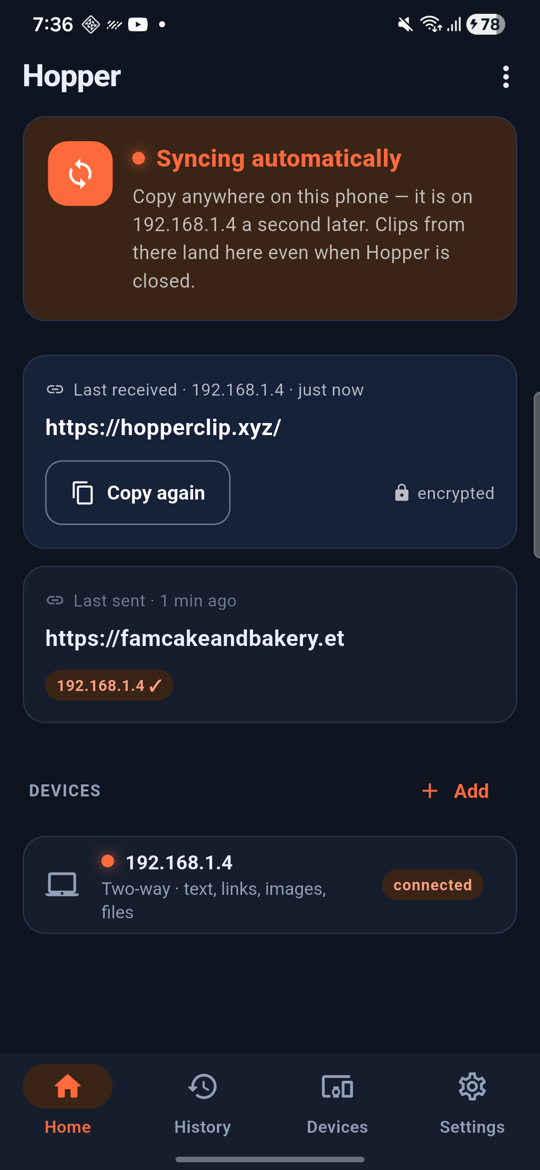
Under a second
Copy on the phone, ⌘V on the Mac. It rides your Wi‑Fi at LAN speed, never a server. Unplug the internet and it still works.
Sealed end to end
Keys are swapped in the room through a QR code. Every session gets fresh keys, every clip is encrypted. On a shared Wi‑Fi, others see noise.
Invisible after setup
A menu‑bar icon on the Mac, a quiet notification on the phone. You only open the app to pair a device or dig through history.
How it works
Three steps, once. After that you never open the app unless you want the history.
Install on each device
The Mac app and the Android app below. Same Wi‑Fi; a phone hotspot counts too.
Pair once with a QR code
Mac shows a code, phone scans it. Four emoji on both screens confirm nobody got in between.
Copy anywhere, paste anywhere
Copy on the Mac, long‑press → Paste on the phone. Copy on the phone, ⌘V on the Mac. Screenshots, links, files too.
Quiet by design
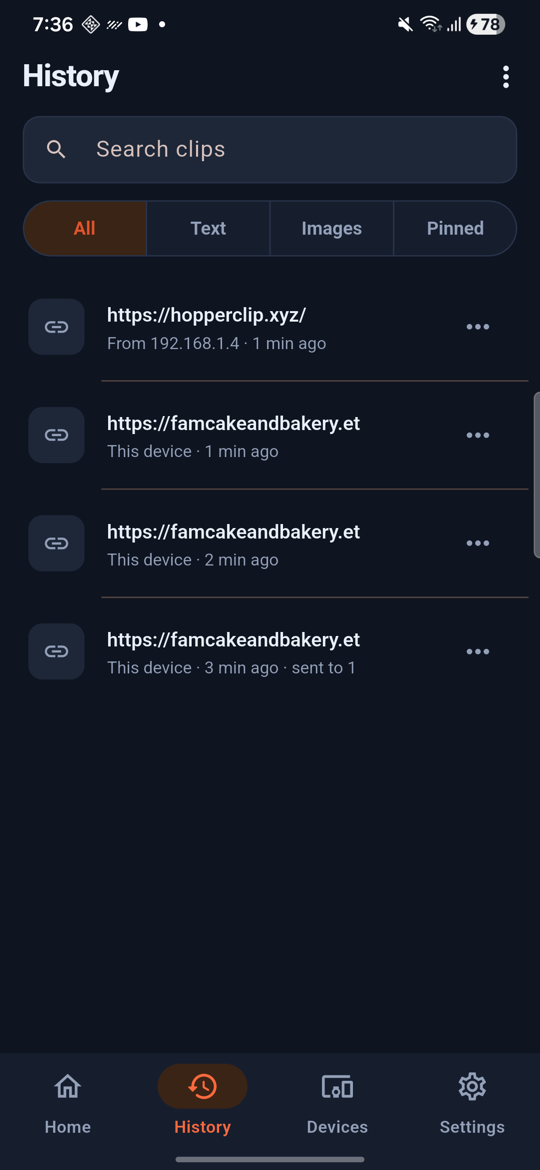
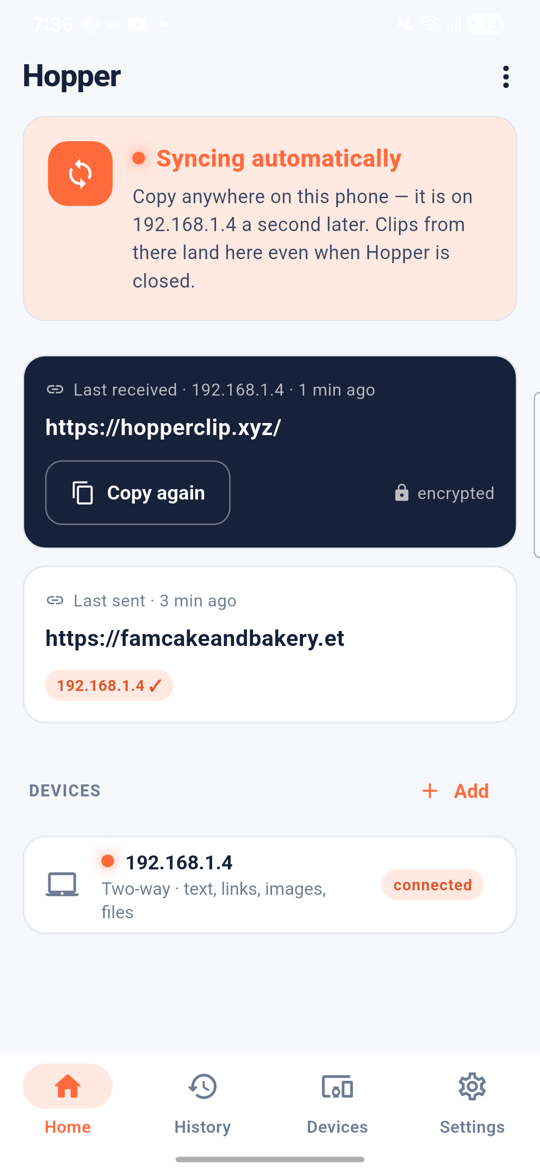
The app is for pairing, history and rules. Day to day you don't see it.
History
Everything that passed through, searchable. Tap to copy again, pin what you reuse, send any old clip to a specific device.
Rules per device
Two‑way, one way only, or manual. Toggle text, links, images and files. Size caps per device.
Sensitive‑content guard
Passwords, one‑time codes and card numbers are held back and you're asked first.
What works where
Honest version. Phones deliberately block apps from reading the clipboard in the background; here's what Hopper does about it.
| Mac | Android | |
|---|---|---|
| Receive automatically | Yes | Yes, always on — even with the app closed or after a reboot |
| Send automatically | Yes, everything you copy | Yes, after a 2‑minute one‑time setup over USB |
| Text & links | Yes | Yes |
| Images & screenshots | Yes | Yes, also saved to Gallery |
| Files | Copy in Finder → sent. Received files land in Downloads/Hopper | Received into Downloads/Hopper. Send with Share → Hopper |
| Needs | macOS 12+ | Android 7+ · Samsung, Pixel, OnePlus, any brand |
Why the one‑time USB step on Android: since Android 10, only the app you're looking at may read the clipboard. Hopper uses the same workaround the well‑known KDE Connect app uses: one permission that only the phone's owner can grant over a USB cable. After that, Android tells Hopper the moment you copy, and Hopper grabs it through an invisible one‑frame window. You'll see Android's own "Hopper pasted from clipboard" toast each time; that's the OS being transparent, not Hopper.
Download
Loading…
Mac: unzip, drag Hopper to Applications and open it. macOS will say it "could not verify Hopper is free of malware" because the app isn't notarised with Apple yet. Click Done, then System Settings → Privacy & Security, scroll down, Open Anyway. Once. Allow Local Network when asked.
Android: open the APK on the phone, allow "install from unknown sources" for the app you opened it with, tap Install. Not sure which one? Take 64‑bit ARM; it's every phone made since about 2017.
Setup, start to finish
Mac + Android (5 minutes)
- Install both apps (above). Put both devices on the same Wi‑Fi.
- Mac, first launch: macOS says "Hopper" Not Opened — Apple could not verify it is free of malware. That's the standard warning for any app that isn't from the App Store; Hopper isn't notarised with Apple yet. Click Done (not Move to Trash), open System Settings → Privacy & Security, scroll down to "Hopper" was blocked and click Open Anyway, confirm with your password, then open Hopper again. Once. Allow Local Network when it asks.
- Mac: Devices → Pair device. It shows a QR code.
- Phone: Devices → Pair device → scan the QR. Check the four emoji match → Done. Clips from the Mac now arrive on the phone automatically.
- To make the phone send automatically too, the one‑time USB step:
- Phone: Settings → About phone → Software information → tap Build number 7 times. Then Settings → Developer options → USB debugging → on.
- Plug the phone into the Mac. Tap Allow on the phone.
- On the Mac, in Terminal:
brew install --cask android-platform-toolsonce, thenbash android-setup.sh(from the download list). It grants two permissions and restarts Hopper. - Open Hopper on the phone. Android asks "Allow Hopper to access all device logs?" → Allow one‑time access. The Home card turns to "Syncing automatically".
- After every phone restart: open Hopper once and tap Allow again. That's Android's rule, once per boot.
Good to know
- Same content copied twice within a few seconds is sent once. Copy something else, or wait a moment.
- Something that looks like a password or code is held back; tap Send once on the notification (phone) or the sheet (Mac), or turn the guard off in Settings.
- Some file managers (Samsung My Files, for one) copy files to a private clipboard apps can't see. To send a file from the phone use Share → Hopper.
- Guest / office Wi‑Fi often blocks device‑to‑device traffic. A phone hotspot with both devices on it always works.
Nothing in between
No server
There is no Hopper server. Nothing is uploaded, nothing is stored anywhere except on your own devices.
Encrypted end to end
Ed25519 identities, X25519 session keys, XChaCha20‑Poly1305 on every clip. Unknown devices are silently ignored.
You can read the code
Open source (MIT) at github.com/Emran-Y/hopper. The protocol, the encryption and the Android trick are all there, and every download has its checksum.
What's next
Where this is going, in rough order.
iPhone
The iPhone app exists and works with the Mac; it ships once the App Store side is sorted. Until then Apple's Universal Clipboard covers iPhone ↔ Mac and Hopper relays to your Android phone.
Play Store & notarised Mac app
Install from the store: no "unknown sources", no Open Anyway.
Windows & Linux
Same code, same protocol; the desktop app already runs on both. Builds and installers are the missing piece.
Big files
Chunked, resumable transfers with an accept step, so a 500 MB video doesn't surprise anyone.
Bluetooth fallback
Text and links sync with no Wi‑Fi at all, e.g. on a train.
Offline queue
Copied while the other device was away? It arrives when it's back.
Questions
Is it safe to install something that isn't from the App Store or Play Store?
The warnings on the Mac ("could not verify") and on Android ("unknown sources") appear for every app that isn't distributed through Apple's or Google's store, regardless of what it does. Hopper isn't in the stores yet. Instead of trusting a store you can read the code at github.com/Emran-Y/hopper, compare the SHA‑256 of your download with the one shown above, and note that the app has no server to talk to.
Is this like Apple's Universal Clipboard or Samsung's Link to Windows?
Same idea, but across brands (a Mac and any Android phone), and without routing your clipboard through anyone's servers.
Does it need the internet?
No. It needs the devices to reach each other on a local network: home Wi‑Fi, office Wi‑Fi, or a phone hotspot. The internet can be down.
Why does the Android setup need a USB cable?
Because the permission Hopper needs to notice your copies can only be granted by you, through Android's developer tools. No app can ask for it. It's the same for KDE Connect and every app in this category.
How big can a clip be?
By default images up to 25 MB and files up to 50 MB per device, adjustable in each device's rules up to 100 MB. Larger transfers are on the roadmap.
Can I share it with friends?
Yes, send them this page. Each pair of their devices pairs with its own keys; your devices never see theirs.